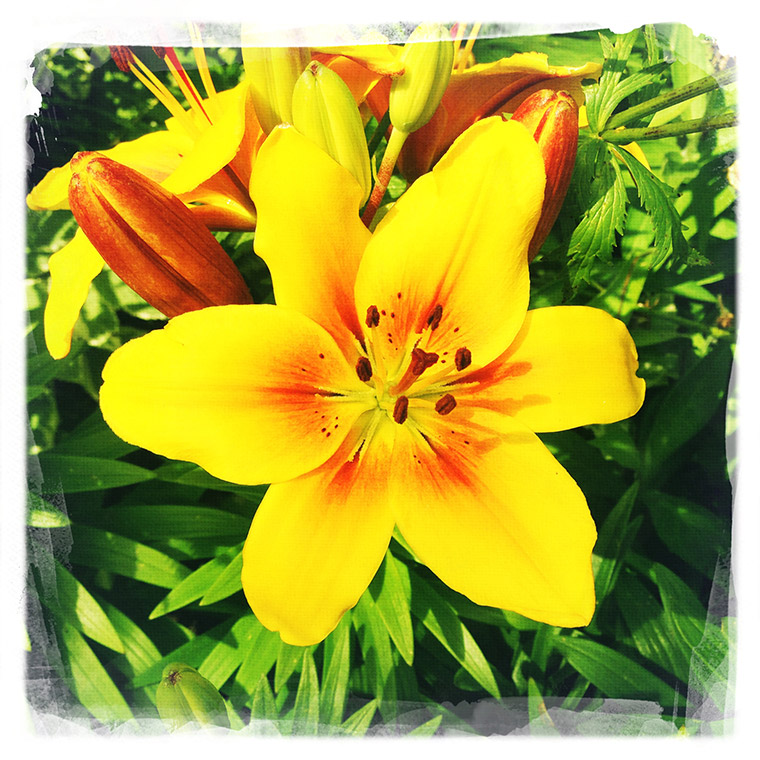
Late last year I was asked by Cheryl from Cheryl McCain Photography if I would be willing to write a guest post for her new “Frugal Still Life Photography” class.
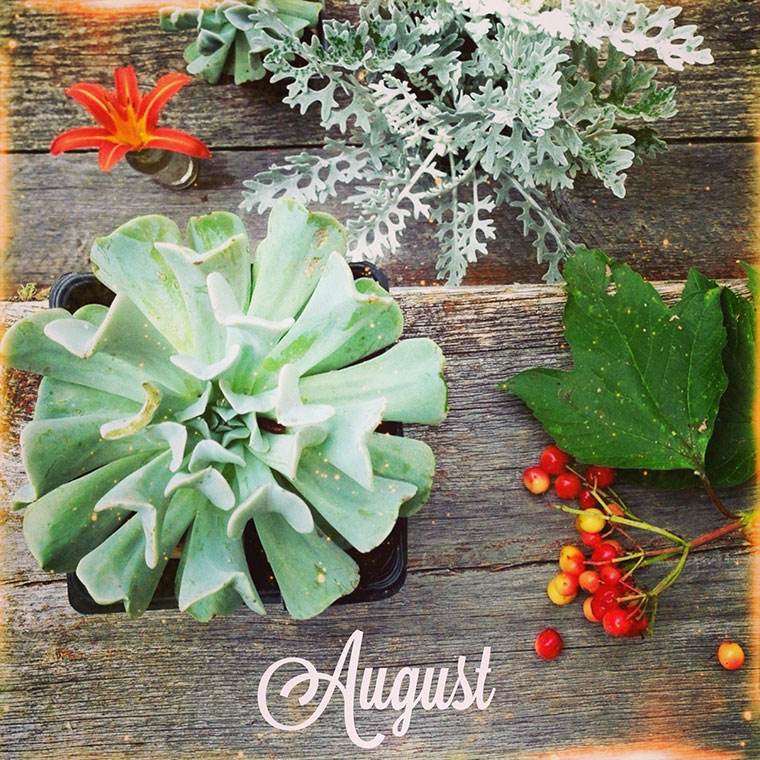
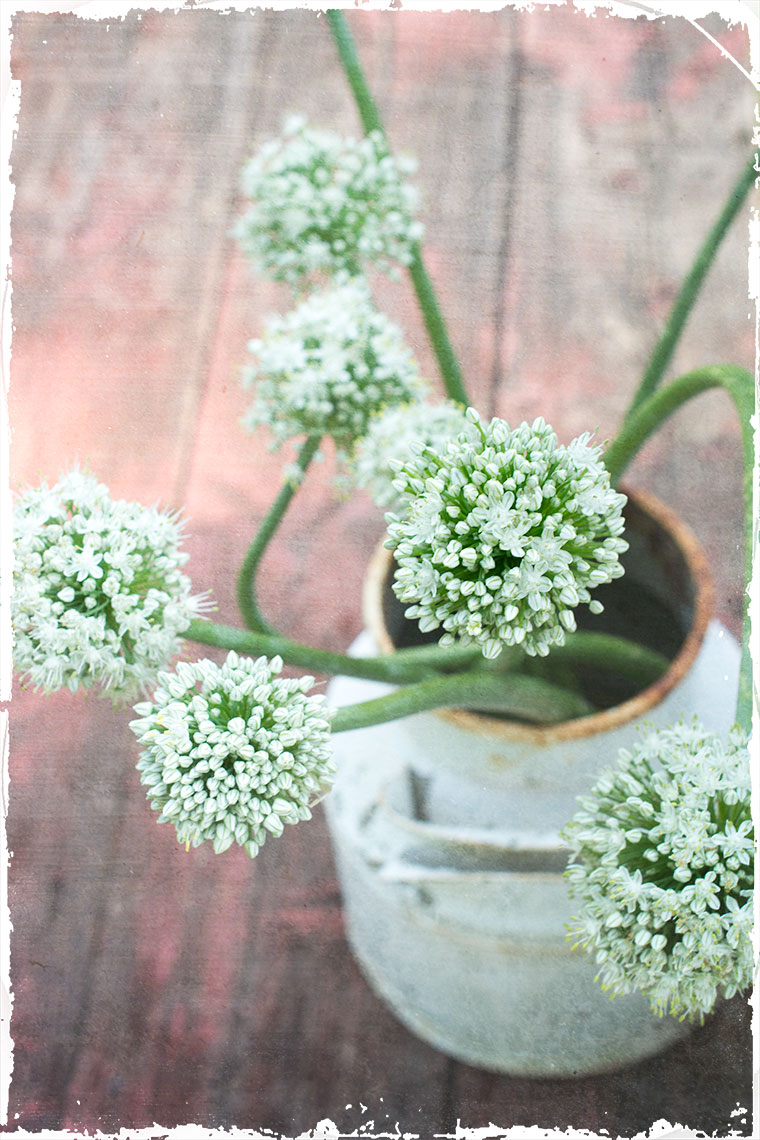
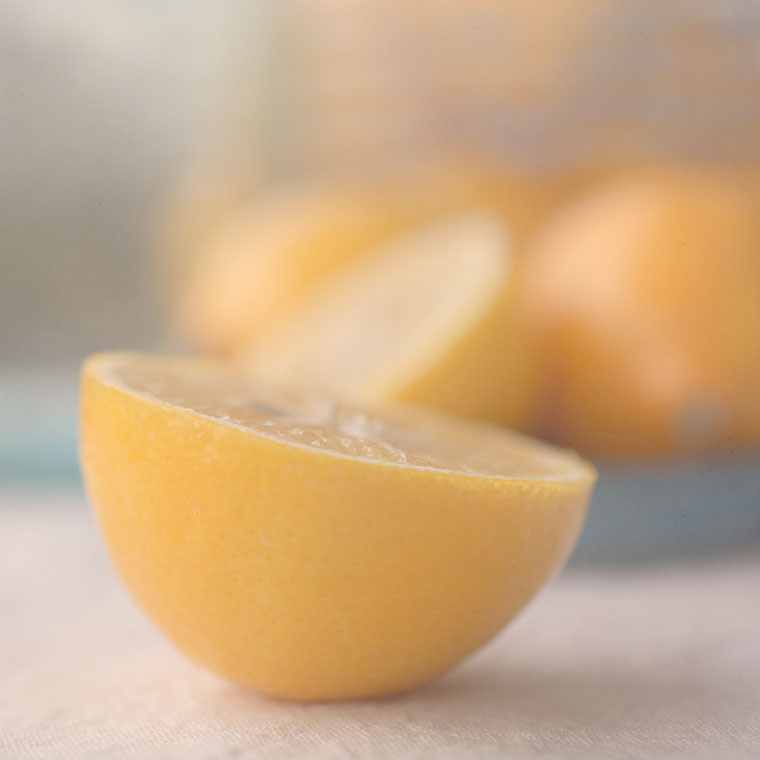
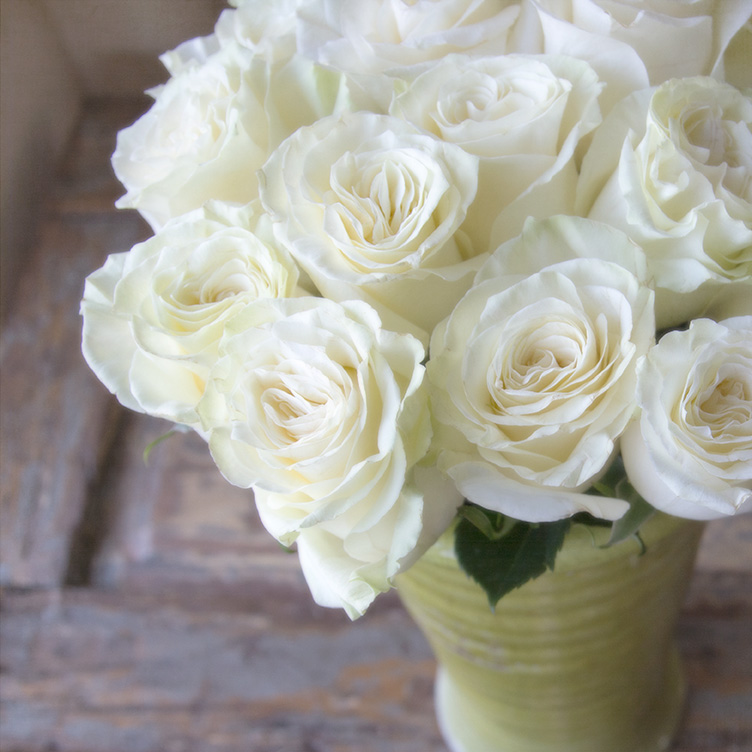
I must say I was quite honoured that she would ask me! I decided to just be myself, to keep it simple, and this is the image I came up with. I wrote a bit about my process; how I set up, photographed and then edited the photo.
There’s nothing like writing something down to make things clear in your own mind and I believe I learned a thing or two as well!
I’m studying the dials and settings on my camera all over again. I was pretty proud of myself for always shooting in manual, but truth be told I still had/have a lot to learn; settings I never use (but should be) and little tricks and tips that hopefully will improve my photography. So thank you, Cheryl, for the boost!
Today I want to share a tip about how to pick a color off the internet and use it in Photoshop. I mentioned in My Holiday Tablescape post that I had sampled a color from the Tiny Prints site to use on the menus I was creating. One of my readers (hi Viv!) asked me how I did it, so here it is!
In Photoshop or Photoshop Elements:
- Click on the Restore Down icon in the upper right corner and make sure you can see both Photoshop and the site where you want to grab the sample.
- Get the Eyedropper tool and in the Options Bar set the Sample Size to 3×3 Average. Click anywhere on an open document.
- Hold down the mouse and drag it over to the internet site and drag around. Watch the color chips in Photoshop and let go of the mouse when you see the one you want. That’s it!
Hope you enjoyed this little tip, and have a wonderful week everyone!
Texture Tuesday at Kim Klassen dot com
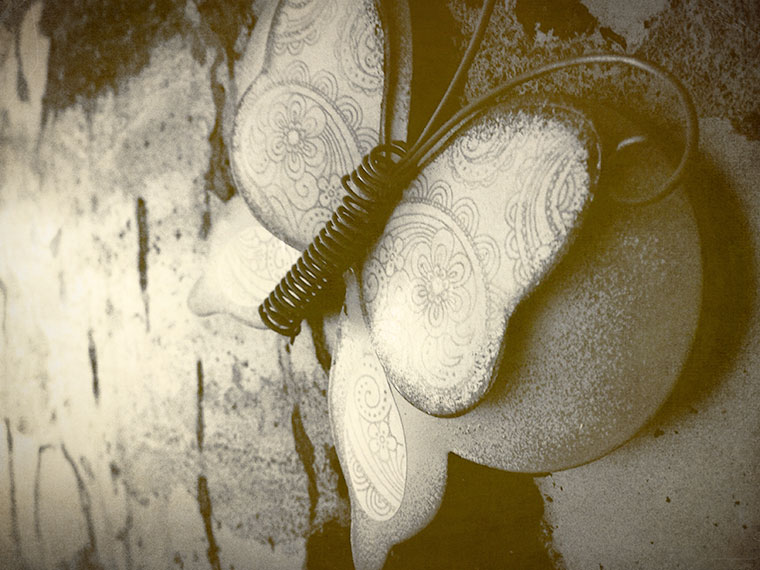
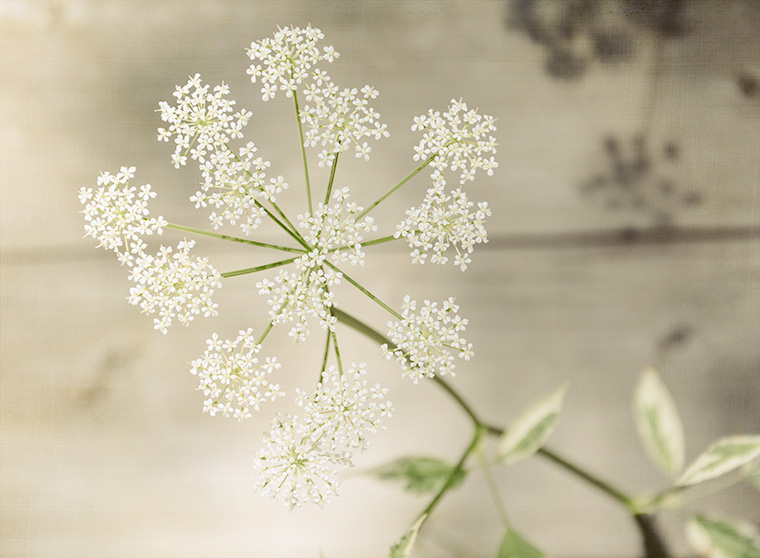
For my image today, I added a layer of kk_3003 on Soft Light.













 That’s the question Kim is asking today at Friday Finds.